Better Photos with AI Background Removal and Upscaling
Getting a professional look for your images often feels like a chore. You might have a great subject in your photo, but the background is messy or distracting. This is a common problem for people selling items online or trying to create a clean profile picture. Thankfully, tools like AI background removal make it much easier to clean up your images in seconds. You do not need to be a pro editor to fix this.
The first step to a clean design is to remove the background from a photo online so you can place your subject anywhere. This process clears out the clutter and leaves you with a transparent file. It makes your subject stand out and gives you a blank slate for your creative projects.
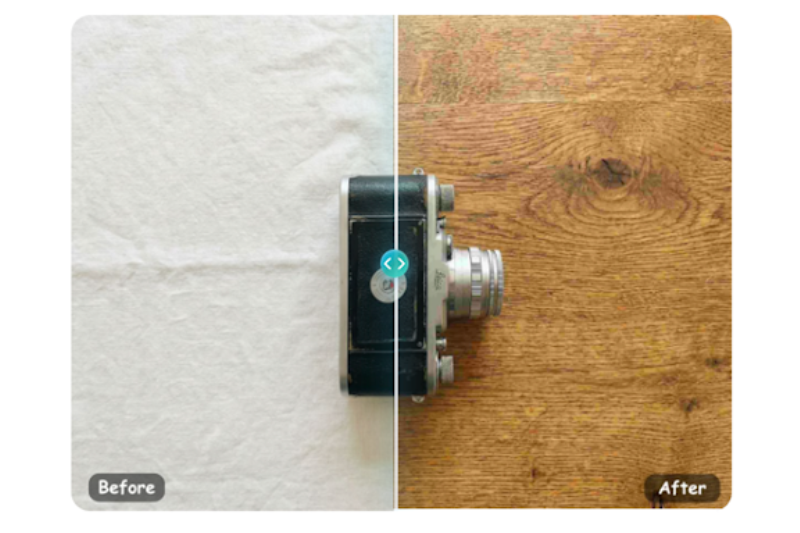
If your original file is small or blurry, you should follow up with an ai image upscaler to boost the quality. This tool adds pixels and sharpens the edges of your subject. Combining these two tools allows you to turn a basic smartphone snap into a high-resolution asset for any platform.
Table of Contents
Step 1: Choose the Right Source Image
Your results depend on the quality of the photo you start with. Look for an image where the subject is clearly separated from the background. If the colors of the subject and the background are too similar, the AI might get confused. A person wearing a green shirt in front of a green wall is harder to process than someone in a red shirt.
Check the lighting before you begin. Even though you are going to remove the background, the lighting on your subject stays the same. If the light is too dim, the edges might look grainy. A clear, bright photo will always give you the cleanest cutout.
Step 2: Upload to the Background Remover

Once you have your photo, go to the AI background removal tool. You will see an upload button or a box where you can drag and drop your file. Most tools handle standard formats like JPG and PNG. After you upload the file, the AI background removal tool starts working immediately.
It looks for the main subject and separates it from the rest of the scene. This usually takes just a few seconds. You will see the background disappear and be replaced by a checkered pattern. This pattern represents transparency. It means there is nothing behind your subject now.
Step 3: Refine the Cutout Edges
Sometimes the AI misses a small detail, like a strand of hair or a gap between an arm and a torso. Most online tools provide a brush or an eraser to fix these spots. You can manually zoom in to see if the edges are smooth.
If you see bits of the old background, use the eraser tool to gently wipe them away. If the AI background removal tool mistakenly removed a part of your subject, use the restore brush to bring it back. Taking an extra minute here ensures your final image looks natural and not like a rough cutout.
Step 4: Use the Image Upscaler

Now that you have a clean subject, you might notice the resolution is a bit low. This happens often if you crop the photo or use an older camera. To fix this, you need to increase the size without making it look pixelated.
Upload your transparent PNG to the upscaling tool. You can usually choose how much you want to enlarge the image. Common options are 2x or 4x the original size. The AI does not just stretch the pixels. It analyzes the image and fills in the gaps with new data to keep the lines sharp.
Step 5: Review and Download
After the upscaling process is done, compare the new version to the old one. You should see a significant difference in clarity. The edges of your subject will look much smoother. This is especially important if you plan to print the image or use it on a large screen.
Save the final file in PNG format. This is the most important part of the process. If you save it as a JPG, you will lose the transparency, and the background will turn white or black. PNG files preserve that invisible background so you can layer the image over other designs later.
Tips and Best Practices
To get the most out of these AI background removal tools, you should follow a few simple rules. These tips will help you avoid common issues and save time on your projects.
| Subject Contrast | Why It Matters |
| High Contrast | Makes it easy for AI to find edges |
| Low Contrast | Can cause parts of the subject to disappear |
| Busy Backgrounds | May require more manual cleaning |
| Simple Backgrounds | Usually results in a perfect one-click cutout |
Focus on the hair and fine details. Hair is the hardest part for any AI to cut out perfectly. If your subject has messy hair, try to use a photo with a simple background to help the software. You can also use the refinement tools to soften the edges so the hair looks more realistic against a new backdrop.
Keep an eye on the file size. High-resolution images are great for quality, but they can be very large. If you are using the image for a website, you might need to compress it slightly after upscaling. This keeps your site loading fast while still looking sharp.
Use consistent lighting if you plan to add a new background. If the light in your photo comes from the left, your new background should also have light coming from the left. If the lighting does not match, the subject will look like it is floating or out of place.
Common Mistakes to Avoid
One of the biggest mistakes is using an image that is too small to start with. If your photo is the size of a postage stamp, even the best AI will struggle to make it look perfect. Try to start with the largest version of the photo you have.
Another error is ignoring the shadows. When you remove a background, you often remove the natural shadows under a person or object. This can make the subject look flat. You might need to add a subtle drop shadow in a design tool later to give the image some depth.
Do not overprocess your images. If you upscale an image too many times, it can start to look like a painting or a plastic figure. The AI tries to smooth out noise, but too much smoothing removes the natural texture of skin or fabric. Stick to a 2x or 4x boost for the most realistic results.
Avoid skipping the manual check. It is tempting to just download the first result the AI gives you. However, spending sixty seconds checking the edges can save you from having to redo the work later. Look closely at the areas around the ears, fingers, and any props the person is holding.
Final Thoughts
Combining AI background removal with AI upscaling is a powerful way to improve your visual content. You can take a simple photo and turn it into a professional asset in just a few minutes. This workflow is perfect for small business owners, social media managers, and hobbyists.
By following the steps in this guide, you ensure your images are clean and high quality. You start by removing the clutter, and then you build up the resolution. This two-step process handles the most common problems people face with digital photos.
You do not need expensive software or years of training to get these results. The tools available online are smart enough to do the heavy lifting for you. Just remember to pick a good source photo, refine your edges, and always save your work in the right format. With a little practice, you will be creating stunning images for any project you have in mind. High quality visuals are now within reach for everyone.
Discover more inspiration on our blog that is packed with fresh ideas and real-world insights.